Watch Google Play’s Playtime event: How to find success for your app or game business

Posted by Lily Sheringham, The Google Play team


Google Play has kicked off its annual event series Playtime, which is running in 12 countries globally. Playtime offers developers the opportunity to learn tips and best practices about how to grow your app or games business and succeed on Android and Google Play.


You can now watch the Playtime talks, listed below, on the Android Developers YouTube channel. The playlist opens with a video about inspirational developers who are changing the world around them with their apps.


Build better apps


You say you want a mobile revolution (13 minutes)

There are now more than one billion Android users worldwide—a long way from when we launched the first Android phone back in 2008. Hear the latest about the Android and Google Play momentum.

Build better (25 minutes)

Learn top tips that you should consider when developing and distributing a successful app or game and how you can leverage M, the Google Play Developer Console and Android Studio.


Grow a valuable audience


Grow & engage users from the Google Play Developer Console (7 minutes)


Learn from other developers who have taken advantage of Store Listing Experiments and other tools in the Developer Console to dramatically increase their conversions.

Maximise installs from every channel (11 minutes)


Get insights into how app promotion can help you reach your audience at the right time. Learn how you can maximize installs from every channel, collect data and insights, automate management and drive user engagement and lifetime value.

How to succeed in the kids and family space (22 minutes)


Learn how to design high-quality apps for families and how to successfully engage your audience. You'll also get practical tips to help you boost your reach, retention and revenue.


Engage and retain your app’s users


The rules of games, for apps (24 minutes)


Learn how games drive monetization and how to turn these insights into best practices for apps.

Boost engagement with smarter interactions (28 minutes)


How do you connect with your users? How does your app interact with the world around us? This session highlights the most exciting new developer features of the Android platform to help you improve the way you engage with your app users.


Grow your game business & engage your players


Grow your business with Player Analytics (24 minutes)


Learn how Player Analytics gives game developers unique insight into the first few moments of gameplay, what happens before critical events like churning or spending, and which players are likely to spend and churn.

Smarter player engagement (23 minutes)


Learn how successful game developers make full use of the Google Play platform to engage their players for months, if not years.

The future of gaming at Google (26 minutes)


Learn about the current ecosystem and the features across platforms that will help you achieve success on Android. Hear about virtual reality games and products which will inspire the development of games in the future.


Monetization & international growth


Monetization and pricing strategies for different users (17 minutes)


Get key insights into how having a considered price and revenue optimisation strategy can help you maximize revenue from very different users.

Go global by being local (13 minutes)


Hear pro tips and best practices, including first hand experiences from apps and games developers, that will help you grow the reach of your apps and games globally.

Going global - developers share their tips (22 minutes)


Gain insight into best practices and learn how to develop a successful global app and games business from Google Play and developer panelists from Citymapper, Jelly Button Games, Musixmatch and Social Point.


Developers share their tips for success


Developer talk #1: Material Design for Forza Football (5 minutes)


Learn and get inspired from best practices on Material Design presented by Sebastian Fürle - Android Developer, Football Addicts

Developer talk #2: Directed creativity: From build weeks to billions (11 minutes)


Learn and get inspired from best practices on directed creativity, from building your app to distribution presented by Tom Grinsted - Group Product Manager: Mobile & Devices, Guardian News and Media

Developer talk #3: Building apps for fast growth markets (8 minutes)


Learn about building apps for fast growth and emerging markets from Sergio Cucinella - Software Engineer, Truecaller


For more videos about Android development and finding success on Google Play, subscribe to the Android Developers channel on YouTube and follow +Android Developers.

Keep users’ content safe with Google Drive

Posted by Dan McGrath, Product Manager, Drive SDK & Partnerships


Chances are, you’re developing an app that creates or manages data. And chances are, your users really care about that content — be it photos and documents, or calorie counts and exercise stats.


Whatever it is, you probably don’t want it stuck on a single device — especially since people are replacing their phones and tablets every couple of years (every now and then… shtuff happens). With Google Drive, you can help users access their data at any time, from just about anywhere:


  • Drive APIs give developers a free and easy way to save and retrieve user content using Google Drive

  • In Android 6.0 Marshmallow, there’s also a new way to save app data and settings to Drive automatically


As your app grows in popularity, Google Drive can scale along with it. In fact, WhatsApp now lets users back up their media and conversations to Google Drive, which translates to about one saved item for every person on the planet — every single day.


Visit our developer site to learn more, and definitely reach out if you want to discuss more in-depth integrations. We’re here to help make your app great, and to keep users’ content safe.

In-app translations in Android Marshmallow

Posted by, Barak Turovsky, Product Lead, Google Translate


Google Translate is used by more than 500 million people every month, translating more than 100 billion words every single day.


Beginning this week, Android mobile users who have the Translate app installed will be able to translate in 90 languages right within some of their favorite apps on any device running the newest version of Android’s operating system (Android 6.0, Marshmallow).


Translating a TripAdvisor review from Portuguese


Composing a WhatsApp message in Russian


Android apps that use Android text selection behavior will already have this feature enabled, so no extra steps need to be taken. Developers who created custom text selection behavior for their apps can easily implement this feature by following the below steps:


Scan via the PackageManager through all packages that have the PROCESS_TEXT intent filter (for example: com.google.android.apps.translate - if it installed) and add them as MenuItems into TextView selections for your app


  1. To query the package manager, first build an intent with the action

    private Intent createProcessTextIntent() {
    return new Intent()
    .setAction(Intent.ACTION_PROCESS_TEXT)
    .setType("text/plain");
    }


  2. Then retrieve the supported activities

    private List getSupportedActivities() {
    PackageManager packageManager =
    mTextView.getContext().getPackageManager();
    return
    packageManager.queryIntentActivities(createProcessTextIntent(),
    0);
    }


  3. add an item for each retrieved activity and attach an intent to it to launch the action

    public void onInitializeMenu(Menu menu) {
    // Start with a menu Item order value that is high enough
    // so that your "PROCESS_TEXT" menu items appear after the
    // standard selection menu items like Cut, Copy, Paste.
    int menuItemOrder = 100;
    for (ResolveInfo resolveInfo : getSupportedActivities()) {
    menu.add(Menu.NONE, Menu.NONE,
    menuItemOrder++,
    getLabel(resolveInfo))

    .setIntent(createProcessTextIntentForResolveInfo(resolveInfo))
    .setShowAsAction(MenuItem.SHOW_AS_ACTION_IF_ROOM);
    }
    }


The label for each item can be retrieved with:

resolveInfo.loadLabel(mPackageManager);


The intent for each item can be created reusing the filter intent that you defined before and adding the missing data:


private Intent createProcessTextIntentForResolveInfo(ResolveInfo info) {
return createProcessTextIntent()
.putExtra(Intent.EXTRA_PROCESS_TEXT_READONLY, !
mTextView.isTextEditable())
.setClassName(info.activityInfo.packageName,
info.activityInfo.name);
}


Adding the translation option to your apps text selection menu (if you don’t use default Android text selection behavior) is easy and takes just a few extra lines of code. And remember, when a user is composing a text to translate, your app you should keep the selection when the Translate app is triggered.


With this new feature, Android Translate app users users will be able to easily translate right from within participating apps. We will be adding more documentation and sample code on this feature in the upcoming weeks.


Get ready for the sweet taste of Android 6.0 Marshmallow

Today we’re starting to roll out Android 6.0 Marshmallow to Nexus users. Of course, the new Nexus 5X and 6P will ship with Android 6.0, straight from the factory. Android Marshmallow is the sweetest, smartest Android version yet: Now on Tap serves up assistance when you need it, battery-smart features keep your device going longer, and new app permissions give you even more control.

Assistance in the moment
Get help with what you need no matter which app you’re in. Now on Tap — a feature unique to Android Marshmallow — stays on task alongside you, instantly pulling up relevant info and helping you get more done. Say you receive an email about meeting a friend at the Central Park Zoo. Just tap and hold on the home button, and Now on Tap will assist you by providing links to information about the zoo, shortcuts to relevant apps and even suggest a calendar entry for the date, time and location.
A longer lasting device thanks to a smarter, more efficient battery
Improving battery life isn’t just about building a bigger battery. It’s also about improving the way your device uses the charge it has. With Android Marshmallow, we’ve added two new features which dramatically decrease your device’s thirst for power.

With Doze, Android recognizes when your device is idle and automatically goes into a deep sleep state to conserve power. To see how well it works, we took a bunch of Nexus 5s and Nexus 6s, put Lollipop on half of them and Marshmallow on the other half, and measured standby battery life. The screen-off time of these devices running Marshmallow lasted 30%* longer on average!  So even if you forget to plug in your phone before bed, your phone’s alarm clock will still ring. The other new battery-conserving feature is called App Standby. This puts your seldom used apps into a reduced activity state to conserve battery for the apps you use more frequently.


More choice and control to protect your privacy
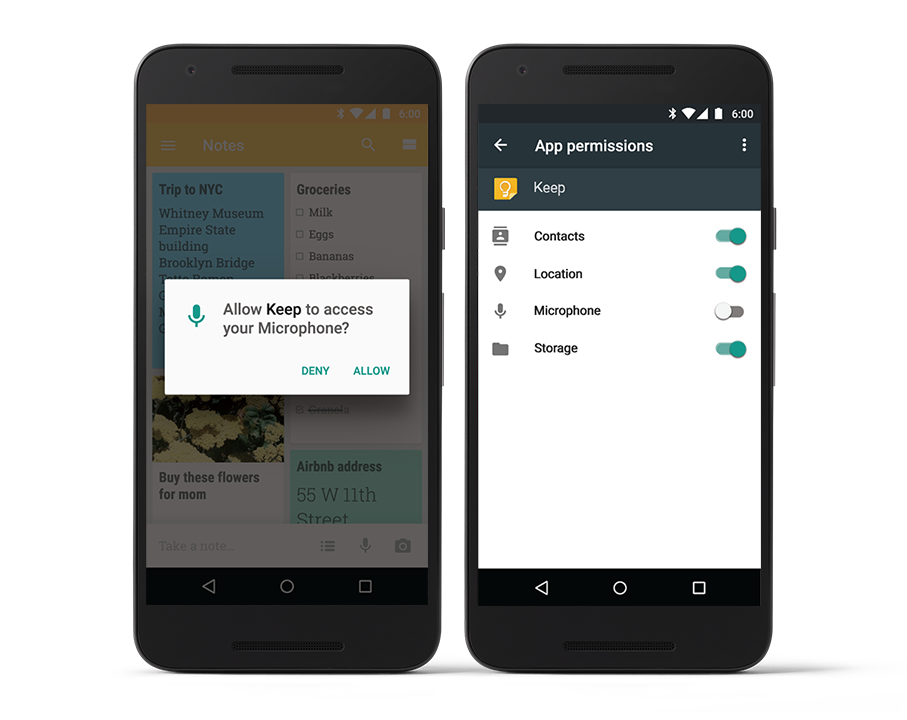
Android Marshmallow gives you the ability to customize and control which capabilities you give apps. With the new app permissions model, you pick and choose which permissions to grant apps at the time of use. Apps designed for Android Marshmallow only ask for a permission at the time it’s needed to use a feature. You can deny any permission and still continue to use the app. In addition, we’ve added new settings for permissions that allow you to turn on and off any permission, for any app, at any time.
AppPermissions-907x720-72DPI.png

Simplified security with your fingerprint
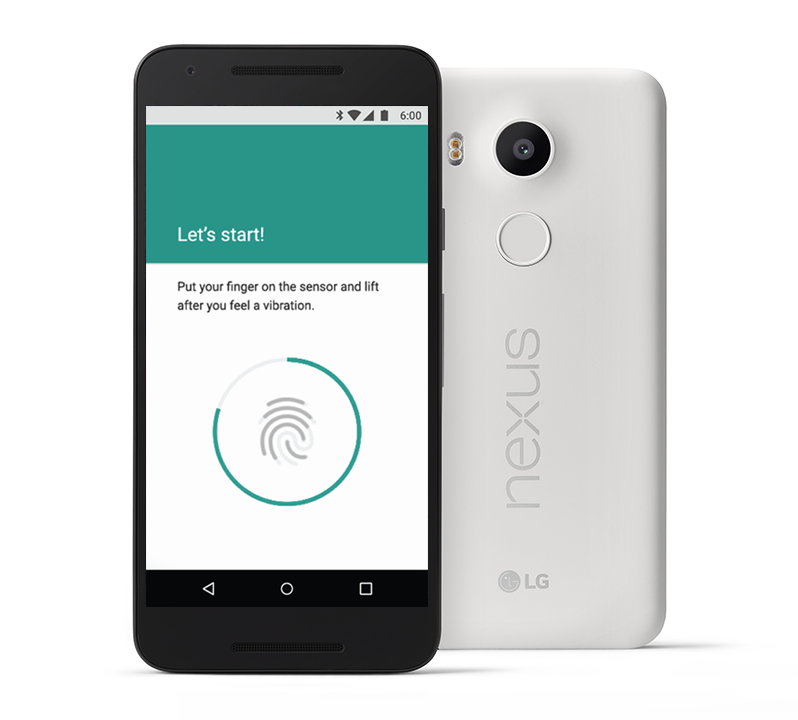
For fingerprint sensor enabled devices, Android Marshmallow gives you a new way to protect your device. On Marshmallow, your fingerprint is the gatekeeper to unlocking your device, authorizing transactions in the Google Play Store, signing into 3rd party apps, and zipping through checkout with Android Pay.
FingerPrintSensor-576x720-72DPI.png

Set up your new device lickety-split
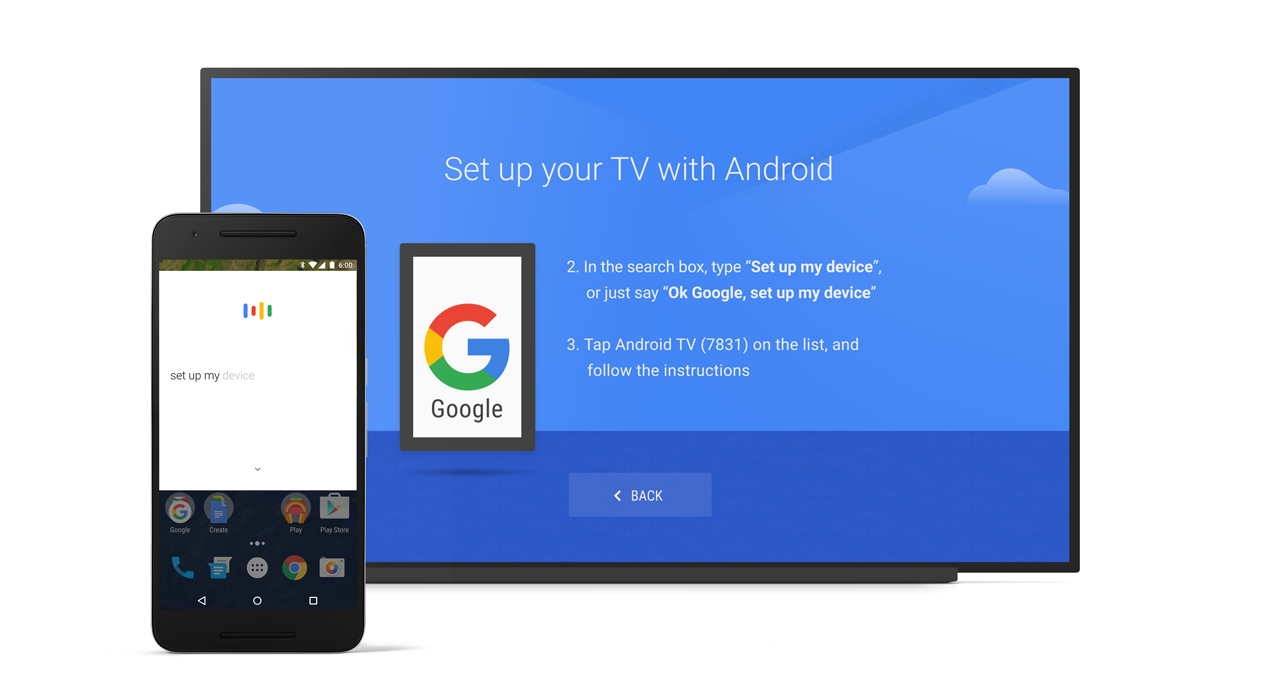
On Lollipop, Android made it easier to set up your new phone from your old one, migrating your apps and app data. With Android Marshmallow, you can breeze through setup on your Android TV or tablet too. Say "OK Google, set up my device" from your phone and you’ll quickly be up and running. For TV, we'll even transfer over your Wi-Fi passwords.

Coming to a device near you, starting today
Nexus 5, Nexus 6, Nexus 7 (2013), Nexus 9 and Nexus Player will get an over the air software update** to Android 6.0 Marshmallow. In addition to the new Nexus 5X and 6P, keep your eyes peeled for other new devices shipping with Android 6.0. Finally, we know many of you take your devices to work. To learn more about security and other work features in Android Marshmallow, register for the Android for Work Live online event on Nov. 4th. This is just a taste of Marshmallow but you can learn s’more on android.com/marshmallow!

Posted by Brian Rakowski, VP of Product Management, Android

*Actual battery performance will vary and depends on many factors including signal strength, network configuration, battery age, operating temperature, features selected, device settings, and voice, data, and other application usage patterns.

**The Nexus update to Android 6.0 Marshmallow occurs in stages and some carriers will receive the update later than others.

Inside Android’s Easter Egg Tradition

Posted by, Natalie Hammel, ½ of Nat & Lo’s 20% Project


A bit more than five years ago, I got my first smartphone. It was the Nexus One. And I didn’t know it at the time, but it was hiding a zombie gingerbread painting inside it. The first (of now many) Android “platform” easter eggs.


Android actually has a long, rich history of various mysterious and silly things tucked away inside its code for developers to enjoy. But its “platform” or “version number” easter eggs are probably the most elaborate and well-known.


Earlier this summer, my friend at work Lo and I started this project to go find out about different Google stuff we’re curious about. And one of the things we wanted to know more about was how the Android lawn sculptures get made. Which lead to us also finding out about why Android names its releases after tasty treats, and making this video.


As we were digging deeper into Android traditions, I decided to head up to Cambridge to get the inside scoop about Android’s easter eggs tradition from Android Framework Engineer / Easter Egg Painter, Dan Sandler. Which we just made this video about.


We hope you enjoyed, and maybe discovered a thing or two. And if you’re still in the mood for more Android video fun, the Android Developers YouTube channel was kind enough to recently compile all of our Android and Nexus videos to date in this playlist. (Take a look if you enjoy phone guts, silly songs, and/or stuffing your face with marshmallows.)


And since our project is ongoing, you can always subscribe to our YouTube channel if you want to check out what new stuff we’ll be learning about next.


Thanks for reading, watching, and easter-egging with us!

Get ready for Fall TV on Android TV

More apps for you to enjoy
We can't guarantee Carrie Mathison will capture Haqqani. We’re not sure what groundbreaking global issues VICE will cover. And we can’t tell you if Sheldon and Amy will get back together.

What we do know is that you can find out for yourself with SHOWTIME®*, HBO NOW*, and CBS All Access, now available on Android TV. So go ahead and catch up on Homeland, VICE, The Big Bang Theory and hundreds of other shows from your favorite apps.
Disney fans, we’ve also got you covered. Disney Movies Anywhere is now available on Android TV so you can watch your favorite Disney movies on the big screen and anywhere you go. Disney princesses not your thing? Well, with EPIX now available, you can choose from thousands of movies, concerts and comedy specials to stream right from your living room.

Fight lovers, we didn’t forget about you. Tune in to WWE and UFC, now both available on Android TV, and never miss a battle in the ring.

In addition to these apps, you can always check out the full list of over 50 premium Android TV apps available for download.

More partners joining the Android TV ecosystem
Android TV is all about choice. Whether you’re looking for a new shiny Smart TV or an amazing gaming console experience, you have an abundance of options to choose from - Sony, Sharp, Razer, Nvidia. And today, we’re adding to your list of options by welcoming Hisense, TCL, and several other smart TV manufacturers to the Android TV family.

Pay TV operators can also be powered by Android TV, letting you seamlessly watch your TV service alongside all the great apps and games on Android TV. With that, we’re also excited to announce Pace, Sagemcom, Technicolor as set-top box manufacturers and KDDI and Telecom Italia as partners who will bring you their Pay TV services powered by Android TV. Now you can enjoy more ways to watch your favorite entertainment.

So, as the nights get longer and colder, you now have another reason to stay in and binge on your favorite TV shows, movies, and sports content right from your Android TV screen.

The end of summer isn't too bad after all.

Note that you may need to sign in with a subscription or participating TV provider account to access some content.


Posted by George Audi, Business Development Manager, Google Play

*SHOWTIME and HBO NOW currently supported on select Android TV devices

How Google Cloud Messaging handles Doze in Android 6.0 Marshmallow

Posted by, Laurence Moroney, Developer Advocate


Android 6.0 Marshmallow introduces a new power saving feature called ‘Doze’. A device enters Doze when the user leaves it unplugged and stationary for a period of time and with the screen off. When this happens, the system defers application activity to save power. It will periodically and briefly resume normal operations, called an idle maintenance window, in order to perform app syncing and other pending operations.


If your app uses Google Cloud Messaging (GCM), you will need to take into account the following behaviors for users whose devices are in Doze.


GCM has two priority types for messages, called high priority and normal priority. When using high priority, GCM attempts to deliver messages immediately, waking a device in Doze, as needed. With Android Marshmallow, nothing changes here.


However, when using normal priority (the default priority), there are a number of different behaviors when the device is in Doze, including:


  • The most important change is that messages will be batched for devices in Doze. When the device enters its idle maintenance window, the batch of messages will be received.

  • We discard messages whose time_to_live expires while the device is in Doze (including TTL=0).


Despite this, it is recommended that, unless absolutely necessary, you keep your notifications as normal priority ones, as this will minimize battery impact. They will still sync during doze mode as described above, and of course once the device exits Doze.


High priority messages should only be used by applications that need to generate an immediate notification to the end user such as a chat app notification or an incoming phone call.


To learn more about Google Cloud Messaging message priorities, visit the Google Developers site.